
What Is Proximos?
Standard Installation
Download DMG
Standard installer for dragging into Applications — this link always hosts the latest version.
Download PKG
For MDM deployment or scripted installs — this link always hosts the latest version.
Requirements
- macOS 13.5 or later, on either Apple Silicon (ARM) or Intel Macs
- A valid Proximos license key
- An active network connection for license validation and update checks
- Approximately 20 MB of free disk space for the Proximos application itself
- Approximately 200 MB of available RAM while Proximos is running
- For major macOS upgrades, approximately 18 GB of free disk space to download the full macOS installer
Strongly Recommended
Enable legacy Apple Automatic Updates in Software Update• Either Individually in the Mac System Settings → Software Update
• Or enabled in a deployed com.apple.SoftwareUpdate MDM profile. Enabling Apple Automatic Updates will improve the Proximos user experience.
About the Application
- Built with Xcode 26, with a deployment target of macOS 13.5.
- Proximos is a traditional, legacy-style menu bar app — it is not written using SwiftUI’s
MenuBarExtra. - The app is not sandboxed, and does not use a Group Container for its bundled preferences.
MenuBarExtra and full app sandboxing are both goals under consideration for a potential future Proximos 2.0, but are not part of the current architecture.
Localization
Proximos is localized into ten global languages: English, German, Spanish, French, Hebrew, Japanese, Portuguese (Brazil), Chinese (Simplified), Korean, and Hindi. Both the Settings window used by IT admins and the menu bar used by end users are fully localized, covering both sides of the deployment — the admin configuring Proximos and the user seeing it every day. See Languages for details on how the display language is determined and how to set it per Mac or per user.Networking
If your network requires firewall or proxy allowlisting, Proximos communicates with the following Enlazo Systems domains over standard HTTPS (port 443) using TLS 1.2:
No other ports or protocols are used — all communication is standard HTTPS/TLS over port 443.
Supported Install Locations
Proximos is designed to run from any of the following locations:/Applications//Applications/Utilities/(recommended)/usr/local/bin/— a discreet, hidden-from-Finder location not normally browsed by end users, which offers some additional protection against casual user tampering compared to the/Applications/folder
Installing from DMG
- Download the latest Proximos DMG — this persistent link always points to the newest version — or use— this link always points to the newest version — or use the link provided in your purchase confirmation email.
- Open the DMG file by double-clicking it.
- In the installer window, drag Proximos.app into the Utilities folder alias shown. Proximos is designed to live at
/Applications/Utilities/Proximos.app. - Eject the DMG once the copy is complete.
- Open Proximos from
/Applications/Utilities/. On first launch, macOS may ask you to confirm opening an app from the internet — click Open.
Note: Proximos can also be installed via the .pkg installer or via MDM scripted installation. See the MDM Deployment section for details.
Purchasing a License
Proximos is a monthly subscription available directly from Enlazo Systems. Licensing is device-based — you purchase a pack that covers a set number of Macs. When Proximos launches for the first time without a license key present in its settings, it displays the Proximos License Manager window. The lower portion of that window shows a Purchase Proximos section with a description and a dropdown menu labeled “Select Subscription Tier…” listing all available plans. Selecting a tier loads the corresponding Stripe checkout page directly inside the License Manager window. An Open in Browser button is also available to open the checkout in your default browser instead. You can also browse available plans and purchase directly at enlazosystems.com. Educational institutions can request a 30% discount code using a.edu email address via the Requests Zone on the Enlazo Help pageusing a .edu email address via the Requests Zone on the Enlazo Help page — see Educational Discounts for details.
Upon successful purchase, your license key will be delivered to the email address provided at checkout.
Payment Processing is performed by Stripe with their Managed Payments option.
Entering Your License Key
Once you have your license key:- Open Proximos from your menu bar or from
/Applications/Utilities/Proximos.app. - The Proximos License Manager window will be displayed. Copy / Paste your license key from the received e-mail into the Proximos License Key field in the Proximos License Manager window, and click Save License.
- Proximos closes the License Manager and validates your key against the Proximos Engine on the next update check run.
- MDM-managed:
/Library/Managed Preferences/com.enlazo.proximos.settings.plist - IT-deployed:
/Library/Preferences/com.enlazo.proximos.settings.plist - User-level (first launch):
~/Library/Preferences/com.enlazo.proximos.settings.plist
Testing Proximos
After installation and license entry, verify Proximos is working correctly before wider deployment.Run a Manual Update Check
Note: You likely need to disable the Enrollment Grace Period to test checking for macOS updates, from the Proximos menu bar → Settings, uncheck the Enrollment Grace Period and click Save.- Click the Proximos icon in the menu bar.
- Select Check for macOS Updates.
- Proximos contacts the Proximos Engine, retrieves the latest required macOS version, computes the enforcement countdown, and takes the appropriate action (notification, Nudge launch, or confirms up to date).
- Review the menu bar status, which reflects the current state — such as “macOS is Up to Date”, a countdown, or the target update version.
Review the Console Log
Open Console.app and filter forcom.enlazo.proximos to see detailed log output from the engine. Look for entries confirming:
- Settings plist loaded successfully
- License key decoded and validated
- API response received with macOS version and release date
- Enrollment grace period status
- Notification or Nudge dispatch confirmed
Test Notifications
Ensure notifications are enabled for Proximos in System Settings → Notifications. On first run, macOS may prompt you to allow notifications from Proximos and its bundled notifier app. For the best experience, deploy the Proximos PPPC Notifications Profile from Settings → Extras before testing.How to Test the Countdown and Enforcement
A built-in testing guide is available in the Settings window by clicking the ⓘ help button next to the Main Settings header. It summarizes the following steps:- A macOS update must be available on the Mac running Proximos. If none is available, wait for a new release or use another Mac with an available update.
- Disable the Enrollment Grace Period if needed to skip the grace period gate.
- Adjust the Enforce Update On Day setting, save the changes, then run Check for macOS Updates from the menu bar.
- The enforcement date is calculated from the release date of the next available macOS version returned by the Proximos Engine. Change the Enforce Update On Day value to test different countdown milestones and past-due enforcement behavior.
- When testing past-due enforcement, you can close Nudge using the Clear Nudge button in Settings → Help.
- To test a major macOS upgrade, enable Major Mode in Settings → Major Settings with a set enforcement version and date, then run Check for macOS Updates.
- After testing, configure your final settings and export them from Settings → Export Settings for USB thumb drive or MDM deployment. Deploying the plist file enables Managed Mode on devices.
Configuring Settings
After successful testing, review and adjust the Proximos settings to match your organization’s requirements before deploying to additional Macs. See the Settings Overview section for a full description of every available option. Key settings to configure before deployment:- Company Name — appears in enrollment notifications
- Enforce Update On Day — days after Apple’s release date before Nudge begins enforcement
- Daily Run Time — when Proximos checks for updates each day
- Enrollment Grace Period — how many days new Macs are exempt from enforcement
- Nudge Update Elements — the header, body text, and subheader shown inside the Nudge window
- Major Settings — if you need to enforce a major macOS upgrade
Menu Bar Icon Reference
The Proximos menu bar icon changes to reflect the current state of the app and the Mac it’s running on. Here’s what each icon means:Terms of Service / No License
Proximos is launching for the first time. The hand waves on first display, prompting you to agree to the Terms of Service or enter your license key.
Checking for Updates
Proximos is actively running an update check. The arrow spins while the engine is working — the menu is temporarily disabled during this time.
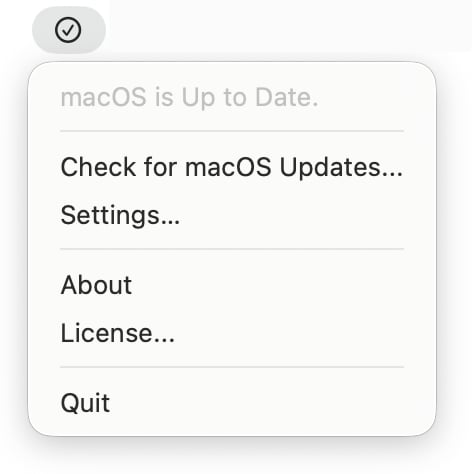
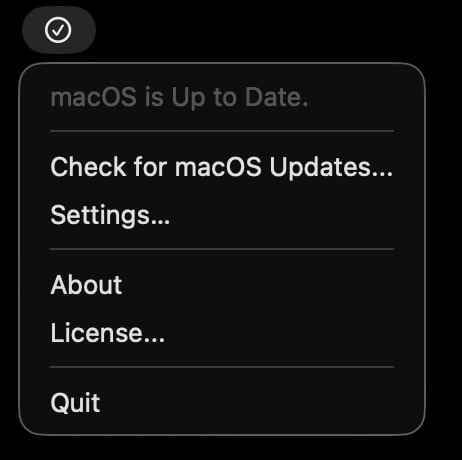
macOS is Up to Date
The Mac is running the latest required macOS version. A green filled checkmark flashes briefly after a successful check, then settles to the outlined version shown here.
Enrollment Grace Period
The Mac is within the enrollment grace period. Update enforcement is intentionally suppressed — no notifications or Nudge will be dispatched during this window.
Update Available
A macOS update is available and enforcement is counting down. A +N badge indicates days past due; a −N badge indicates days remaining. No badge is shown when the deadline is today.
Version Skip Active
An administrator has used
--skip-macos-version to suppress enforcement for the current update version. The neutral icon and absent badge reflect the intentional bypass.Software Update Error
softwareupdate returned an error or could not locate the required update locally. Nudge enforcement is blocked until the issue resolves. Check Console logs for details.Unlicensed
The license key is invalid or the subscription has lapsed. Scheduled checks and engine runs are suspended until a valid license is entered.
Configuration Error
The Proximos settings plist could not be decoded, or was not found at any expected location. The menu item shows the path of the offending file. Correct the plist and Proximos will recover automatically within 10 minutes.