
Opening the Console App
The Console app is located in Utilities, inside your Applications folder. You can also find it quickly via Spotlight — press⌘ Space, type Console, and press Return.
Capturing Logs
1
Start Streaming
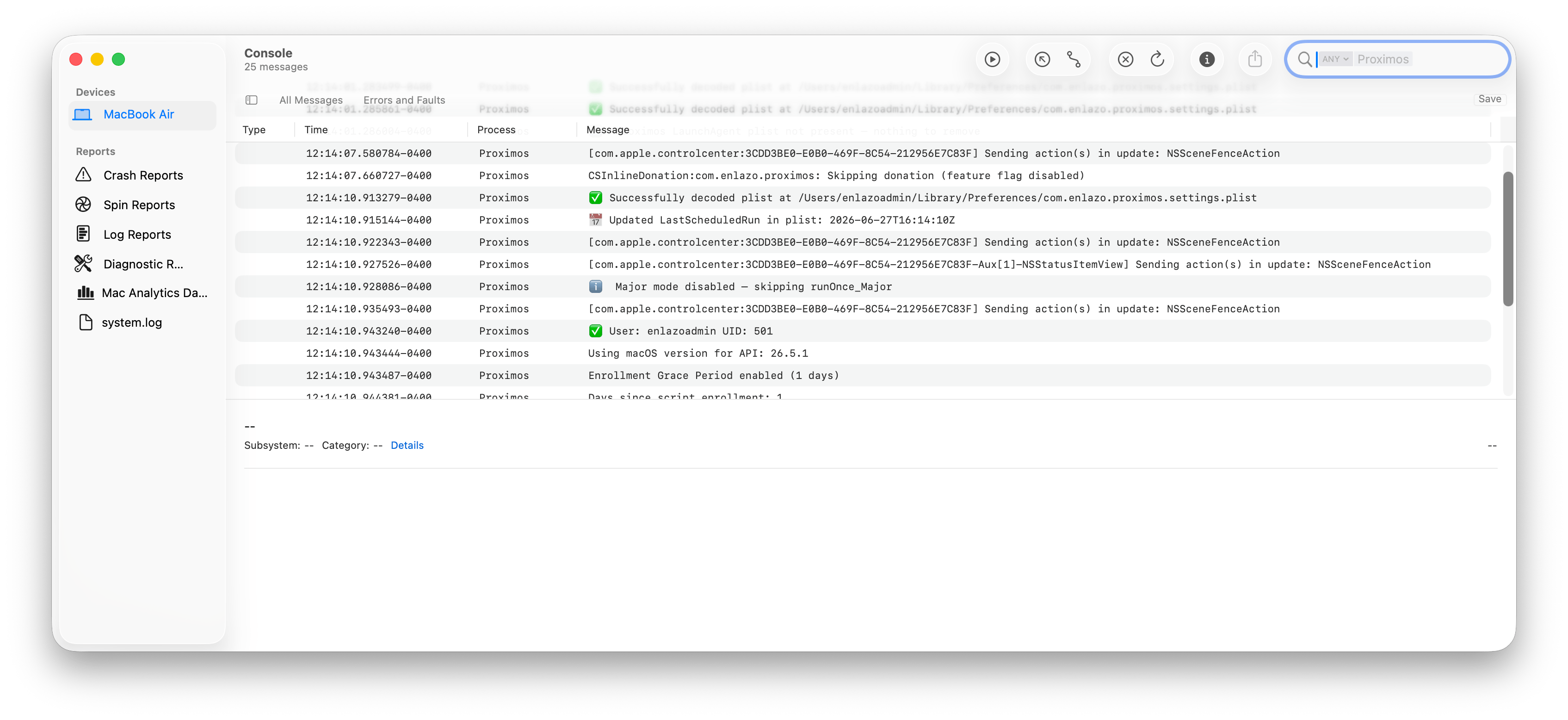
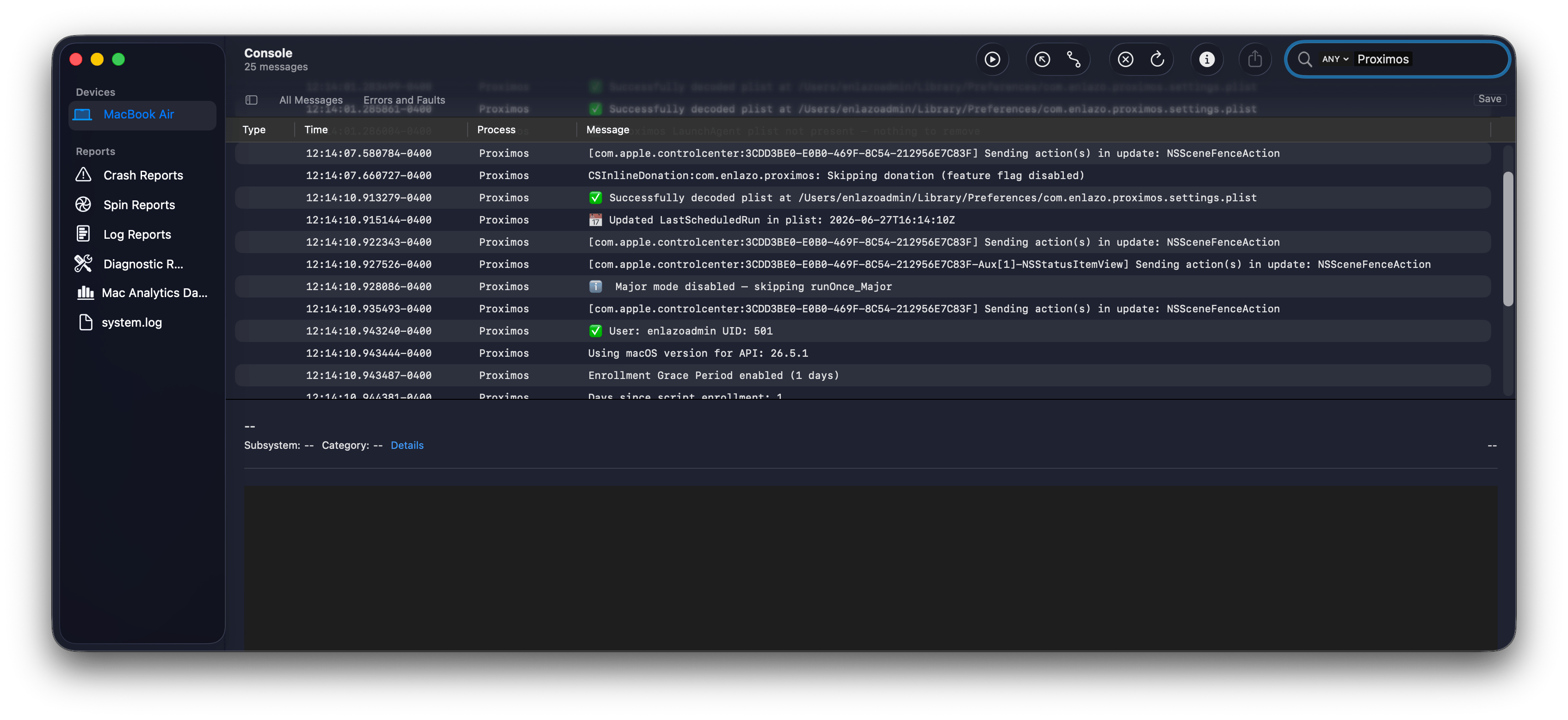
Once Console is open, click Start Streaming in the toolbar. This begins capturing live log output from the system.
2
Reproduce the Issue
With streaming active, perform the runs or operations in Proximos that you want to diagnose. This ensures the relevant log entries are captured.
3
Filter for Proximos
In the search field in the top-right corner of the Console window, type Proximos (without quotes) and press Return.
4
Refine the Filter
In the same search bar, click the dropdown arrow next to the word Any, and choose your filter mode:
- Equals — Shows only logs from the Proximos app itself. Use this when troubleshooting core Proximos issues.
- Contains — Shows logs from Proximos and the Proximos Notifier. Use this when you need a broader view that includes notifier activity.
5
Pause Streaming
Once you’ve reproduced the issue and captured the relevant activity, click Pause in the Console toolbar to stop the stream. This makes it easier to read through the log output without it scrolling further.
Reading the Logs
With streaming paused and the Proximos filter active, scroll through the log entries to identify errors, warnings, or unexpected behavior. Log entries include timestamps, process names, and message text — use these to correlate events with the actions you performed in Proximos.Sharing Logs
If you need to share your logs with support or a colleague:- In the Console log window, press ⌘ A to select all visible log entries.
- In the top-right corner of the Console window, click the share arrow button.
- From the share menu, select Copy.
MDM Troubleshooting via Policy Logs
When Proximos is deployed via MDM and you run any standard Proximos command — such as--check-for-updates — the runtime log output is automatically captured and saved in your MDM’s command execution history for that device.
This means you don’t need Console access on the managed Mac itself. Instead, check the script or command run log in your MDM console directly. The output will include the same runtime information that would appear in Console, making it straightforward to diagnose issues with remote Macs without requiring physical access or additional log-collection steps.
General Issues
Daily or Enrollment Notifications Not Appearing
The macOS notifications daemon is its own system and API within macOS. Notifications must come from a genuine macOS app and be registered as approved. Sometimes, we have seen the notifications daemon takes up to 20 minutes to allow an new Mac app to show notifications. Or, applications won’t be able to show notifications until the Mac’s next restart, or a restart of thenotifyd process.
Cause: The user may have initially clicked “No” or ignored the request to approve Proximos Notifier Notifications when the first enrollment or daily notification appeared.
Fix: Ideally apply the Proximos PPPC profile (MDM Required) or Notifications Profile (no MDM required) to the Mac, or ask the user to visit their Apple logo → System Settings → Notifications, and allow Notifications for Proximos.
Cause: If Proximos was just opened for the first time, the local Mac’s notification engine may have not yet authorized the app
Fix: In Terminal, perform asudo killall notifyd then try running another “Check for macOS Updates”. Or simply restart the Mac and try again.
Cause: When using custom notifications - a custom special character, accent, or non-latin text character can cause an issue with IBM Notifier.
Fix: If using customized notifications and they are not showing, try setting the custom notification to a simple english “Hello” and see if the notifications appear after. IBM Notifier is known to have trouble with some special characters such as exclamation points, and potentially other accents or non-latin characters.