
Minor Engine
The Minor Engine is the core of the standard minor update workflow. It runs once per daily trigger — whether from the menu bar app, the headless CLI launch agent, or a manual check.Minor Engine Step-by-Step
1. Notifier check: Verifies the Proximos Notifier app is present in the bundle. If missing, the run aborts. 2. Beta seed check: Runsseedutil current to detect if the Mac is enrolled in an Apple beta software seed. Beta Macs are excluded from enforcement — the run exits.
3. Console user check: Resolves the currently logged-in GUI user. If no user is logged in (login window or setup assistant), the run exits — enforcement requires an active user session.
4. Enrollment grace period evaluation: Checks the user’s runtime plist for EnrollmentDate. If not present, sets today as the enrollment date and shows the welcome notification. Computes days since enrollment vs. the configured grace period days. If still within the grace period, shows a countdown notification and exits.
5. API call: Contacts the Proximos Engine at https://proximosappengine.enlazosystems.com/ with automatic fallback to a secondary AWS endpoint. Sends the device’s current macOS version and license key. The API returns the required target macOS version and Apple’s release date for that version.
6. Version comparison: Compares the device version to the API target. If already up to date, or running a newer version (beta), disables any existing Nudge setup and exits cleanly.
7. Enforcement date calculation: Computes enforcementCount = days since Apple’s release date minus enforceUpdateOnDay. Negative = days remaining before the deadline. Zero or positive = past due.
8. Version skip check: Checks the runtime plist for a skipmacOSVersion key. If set and matching the target version, writes the current update status to the plist (so the menu bar and MDM attributes remain current) and exits before any notification or Nudge action fires.
9. Notification dispatch (pre-enforcement): If enforcementCount matches one of the specific milestone values (−30, −25, −20, −15, −10, −5, −4, −3, −2, −1), sends a countdown notification via the bundled notifier and exits. Proximos does not use Nudge during this period.
10. softwareupdate availability gate (past enforcement date): When enforcementCount >= 0, runs softwareupdate --list to confirm the target version is actually available to this Mac before launching Nudge. Four outcomes:
- available: Target version confirmed — proceed to Nudge
- mismatch: Other macOS updates listed but not the exact target version — record the mismatch but still proceed to Nudge
- noUpdates: No macOS updates offered at all — skip Nudge, record error code
0in plist - error:
softwareupdateexited non-zero — skip Nudge, record exit code in plist
enableNudgeLaunchAgent.
12. License status update: Writes the current license validation result to the runtime plist.
Enrollment Period → Minor Engine Flowchart
Major Engine
The Major Engine handles enforcement of major macOS upgrades. It activates whenenableMajorMode = true in the settings.
Unlike the minor engine, the major engine does not contact the Proximos API. All enforcement scheduling is driven by the enforceMajorReleaseDate date configured in Major Settings. The major engine also downloads the macOS installer if it is not already present on the Mac.
Major Engine Step-by-Step
1. Notifier check: Same as minor engine — verifies the notifier is present. 2. Console user check: Same as minor engine. 3. Target version check: ReadsmajorVersionToEnforce from settings and compares to the device’s current major macOS version. If the device is already on or ahead of the target major version, disables any Nudge and returns alreadyOnTargetMajor or deviceNewerThanTarget — the caller (AppDelegate) then runs the standard minor engine to handle point release updates for the current release line.
4. Enrollment grace period: Same logic as the minor engine. If within the grace period, shows the enrollment notification and exits.
5. Installer name resolution: Queries softwareupdate --list-full-installers to find the correct installer for the target major version, parsing the output for the release name (e.g., “Tahoe”) and version string (e.g., “26.0”). The result is cached in the runtime plist so subsequent runs skip the network call if the installer name is already known and the version matches.
6. Installer download: Checks for the installer at /Applications/Install macOS [Name].app. If missing, runs softwareupdate --fetch-full-installer --full-installer-version [version] to download it, showing a download notification to the user. Any download error exit code is written to the runtime plist as majorInstallerDownloadError.
7. Enforcement date calculation: Computes enforcementCount by comparing today’s date to enforceMajorReleaseDate. Unlike the minor engine which offsets from Apple’s release date, the major engine uses the admin-configured enforcement date directly.
8. Notification dispatch (pre-enforcement): Same milestone countdown as minor engine: −30, −25, −20, −15, −10, −5, −4, −3, −2, −1 days.
9. Nudge launch (past enforcement date): Writes the Nudge JSON configuration (with majorUpgradeAppPath pointing to the downloaded installer) and launches Nudge or the Nudge LaunchAgent as configured.
Enrollment Period → Major Engine Flowchart
How Nudge Enforcement Works
Proximos uses Nudge as the enforcement layer for requiring users to complete macOS updates. Understanding the relationship between Proximos and Nudge is important for planning your enforcement strategy.The Countdown Period — Notifications Only
During the countdown — whileenforcementCount is negative — Proximos never opens Nudge. Instead, it sends informational notification banners via the bundled IBM Notifier at specific milestone days. These are standard macOS notification banners users can dismiss. The intent is to give users advance warning with low friction before mandatory enforcement begins.
Notifications fire only on specific milestone days, not every day:
- 30 days remaining
- 25 days remaining
- 20 days remaining
- 15 days remaining
- 10 days remaining
- 5 days remaining
- 4 days remaining
- 3 days remaining
- 2 days remaining
- 1 day remaining
The Enforcement Period — Nudge
WhenenforcementCount reaches 0 (the deadline day) or greater (past due), Proximos switches from notifications to Nudge. Proximos generates the Nudge JSON configuration file and either launches Nudge immediately or installs/updates the Nudge LaunchAgent.
Nudge presents a persistent window that follows the user across Spaces, can cover other applications, and provides an Update button. Nudge’s elapsedRefreshCycle determines how often it re-checks compliance while open. The Aggressive User Experience and blocking options in Nudge Settings further control how firmly Nudge enforces the requirement.
The softwareupdate Availability Gate
Before Nudge launches, Proximos runssoftwareupdate --list to confirm the target macOS version is actually offered to this Mac’s specific hardware. This prevents Nudge from running on Macs where the update isn’t available. If the check reports no updates, Proximos skips Nudge and records a diagnostic code in the runtime plist as softwareupdateError.
Enable Skip Software Update Validation in Main Settings to bypass this gate and always enforce with Nudge when past the deadline.
Nudge LaunchAgent vs. Direct Launch
Direct launch (default): Proximos launches Nudge immediately when enforcement is triggered. Nudge runs for the current session. Nudge LaunchAgent mode (enableNudgeLaunchAgent = true): Proximos writes the Nudge JSON and installs a Nudge LaunchAgent (com.github.macadmins.Nudge) for the user. The agent runs Nudge on the nudgeNagInterval schedule (default: 15 minutes), providing persistent nagging between Proximos daily runs and surviving restarts within the user’s session.
Handling a Corrupted or Misconfigured Settings File
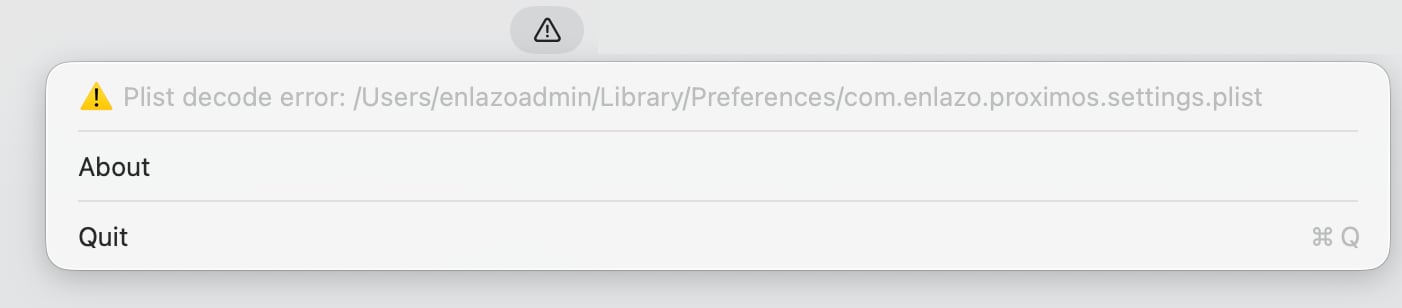
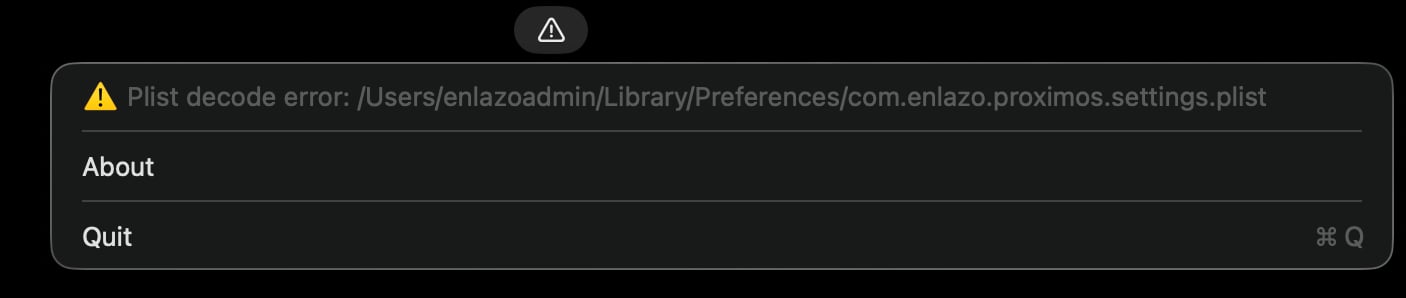
- Redeploy a corrected settings plist to the appropriate location (
/Library/Managed Preferences/,/Library/Preferences/, or the user’s~/Library/Preferences/, depending on your deployment method). - Proximos will refresh its settings and automatically heal within 10 minutes of a corrected plist being deployed.
- Or, restart the Proximos application to force Proximos to re-read the corrected file immediately.
Recommendation: Always create and export your settings file using the Proximos application itself (Settings → Export Settings) rather than hand-editing the XML plist in a text editor. The export process guarantees valid plist syntax and correctly typed values, which avoids this failure mode entirely. See Export Settings Tab for details.